
In this video I go over a pretty useful tutorial on modifying the video playback speed on nearly any website on the interwebs. The default video player on most websites such as YouTube have very limited playback speed options and are usually limited to 2X speed max and 0.25X speed minimum; and some websites don’t have any options to modify speed at all. A much better and more customizable video player is by using a browser extension, and in particular the Google Chrome browser extension that I have been using for a while now.
Video Speed Controller: mes.fm/videospeed-extension
This extension allows for making keyboard shortcuts to increment video playback speed as well as to move forward and backwards in time at set intervals. It can play a video or even just an audio file at speeds between 0.07X and 16X, far outside the range of the default settings. If you choose not to use browser extensions, or are not able to, another way is to change the source code: right click the webpage, select Inspect, and enter the following line in the Console:
document.querySelector('video').playbackRate = 3.0;This manual method works on most websites, but not as many as the extension. Also in the video: my earlier recommendation of Hooktube.com no longer has its custom video player, so I no longer reference it, and I briefly cover a second extension that boosts audio volume past its default maximum.
Volume Booster: mes.fm/volume-extension
- Watch on: 3Speak · Odysee · BitChute · Rumble · DTube · YouTube
- Video notes: Download (OneDrive)
- See all my recommended extensions at mes.fm/browser.

Timestamps
Click a time to jump to it in the video above.
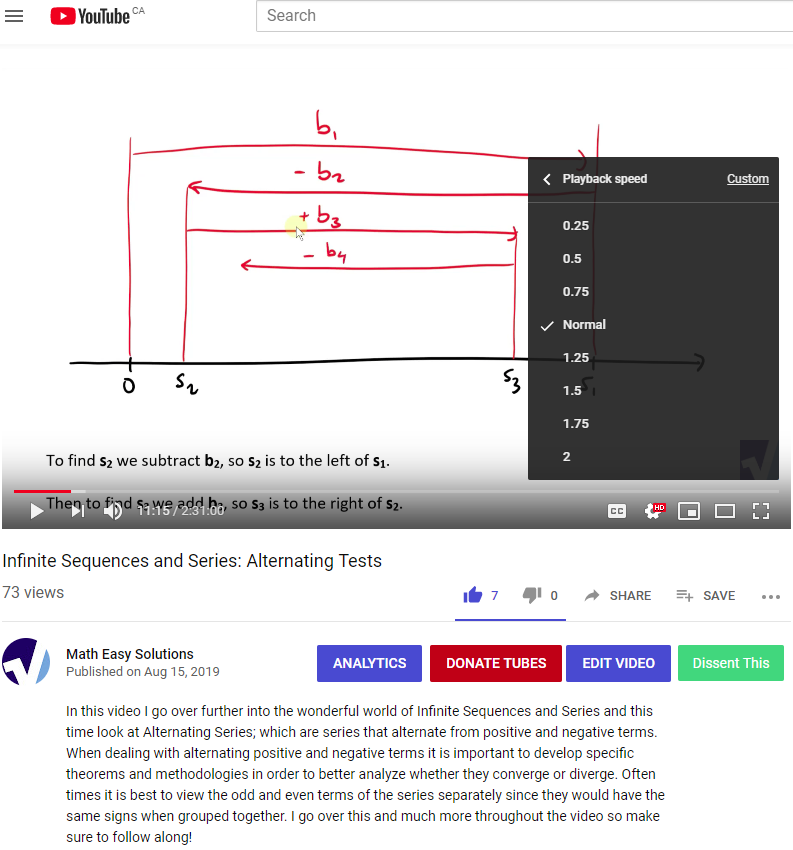
Conventional Video Players
Most video players only have limited or even zero playback speed options.
https://www.youtube.com/watch?v=z4Z3ObcCsXs
Retrieved: 16 August 2019
Archive: http://archive.fo/P9IBr
Video Speed Controller Browser Extension
I mainly use the Google Chrome browser and the “Video Speed Controller” browser extension.
https://chrome.google.com/webstore/detail/video-speed-controller/nffaoalbilbmmfgbnbgppjihopabppdk
Retrieved: 16 August 2019
Archive: http://archive.fo/N7Vwf
MES Short URL: mes.fm/videospeed-extension
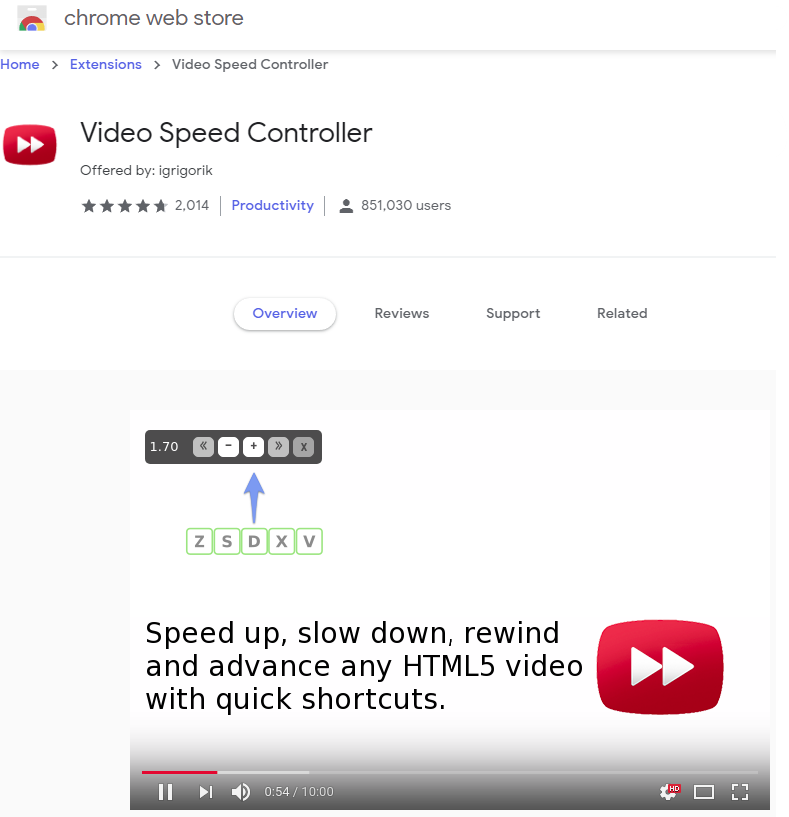
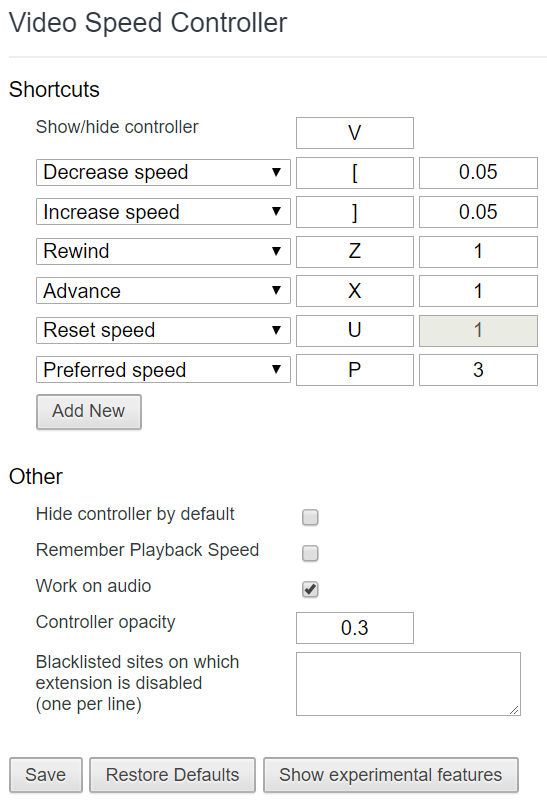
It is a very good extension and I have not had any issues in using it. In the Settings of the extension you can select the specific shortcut keys you want and for several very useful features such as increment speed and advance forward or backward in time.
Note that the extension can work with audio only files as well and has the ability to select which websites you would prefer not to have the extension run.
This extension is only compatible with HTML5 video. If you don’t see the controls showing up, chances are you are viewing a Flash video. If you want to confirm, try right-clicking on the video and inspect the menu: if it mentions flash, then that’s the issue. That said, most sites will fallback to HTML5 if they detect that Flash is not available.
Works on Most Sites!
The best part of the browser extension is that it works on most websites and video players. Here are some examples of videos and sound files that work with the extension:
- BitChute: https://www.bitchute.com/video/7i6LKGqD2Bre/
- DTube: d.tube/#!/v/mes/QmYDaBC1CNwZj1VYWdMToEyp28EoY7gwUu977pEKJPZ5Ld
- Twitter: https://twitter.com/MathEasySolns/status/1022275630715400192
- DSound: dsound.audio (djlethalskillz: Chillin on the Blocks)
Control Video Playback Speed by Modifying the Source Code
For the more technical users, updating the source code directly may be preferred if you would not like to or are not able to download a browser extension. Right click the webpage, select Inspect, type the following line in the Console input area, and press enter.
document.querySelector('video').playbackRate = 3.0;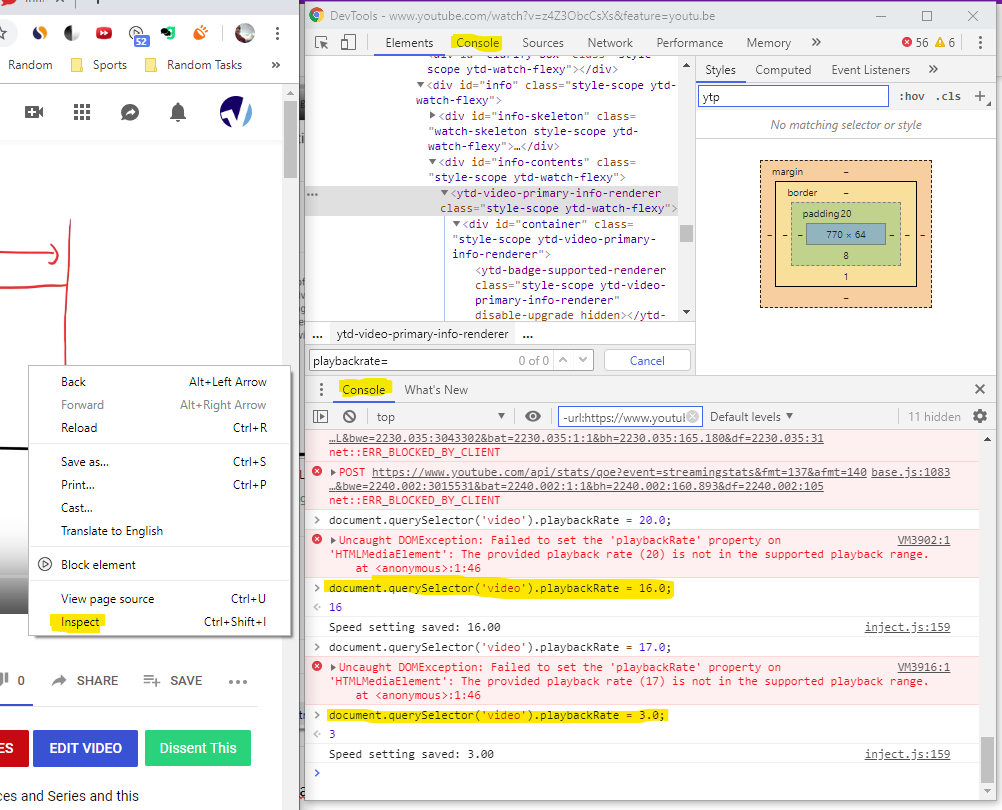
Note that it appears that the maximum playback speed is 16X. This procedure works for YouTube, BitChute, and Twitter but not for DTube or DSound; the latter two being on the STEEM blockchain, which may explain why.
Note on HookTube.com
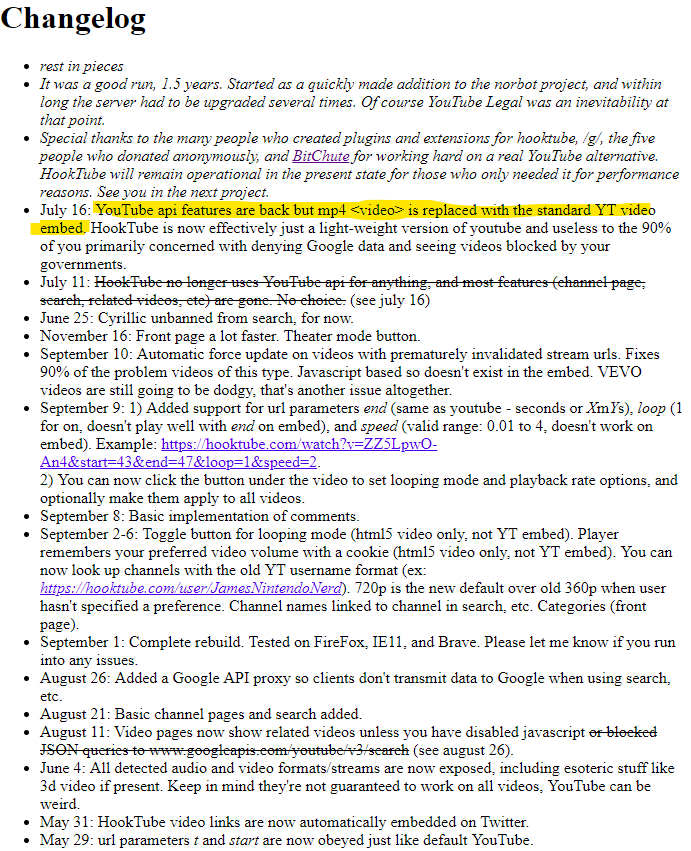
In many of my earlier videos I included a reference to HookTube, which used to have custom playback options, but in making this video I found out that this feature is no longer available.
https://hooktube.com/changelog
Retrieved: 16 August 2019
Archive: http://archive.fo/Txg3m
Volume Booster Browser Extension
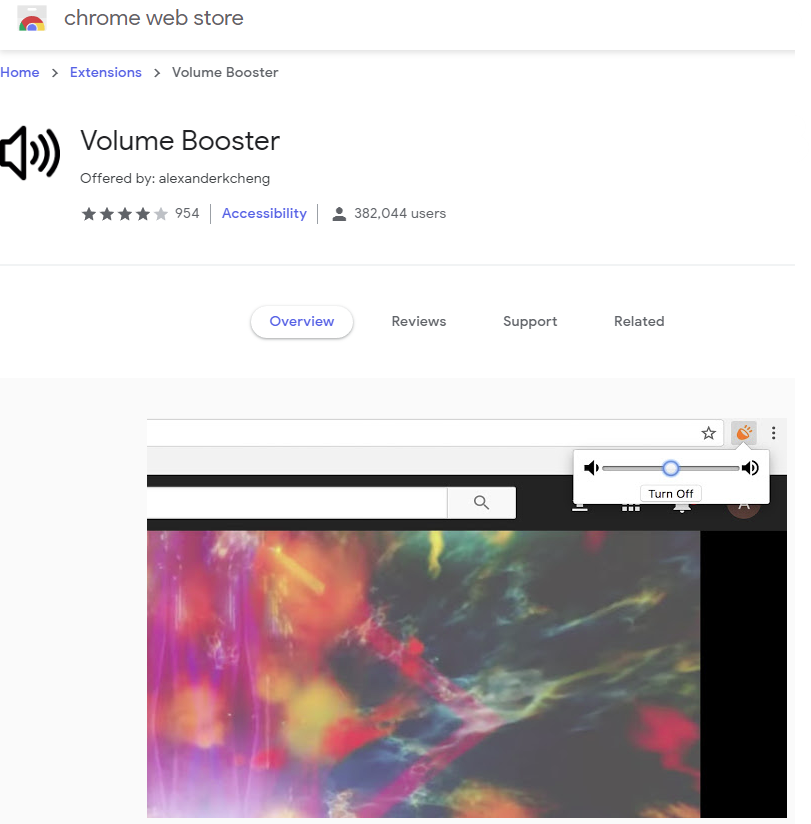
Adding to the theme of manipulating how a video or audio file is played back, I would also recommend this Volume Booster Google Chrome browser extension, which does just what its name says.
https://chrome.google.com/webstore/detail/volume-booster/ejkiikneibegknkgimmihdpcbcedgmpo
Retrieved: 16 August 2019
Archive: http://archive.fo/RG7qj
MES Short URL: mes.fm/volume-extension
If you have other recommendations let me know!
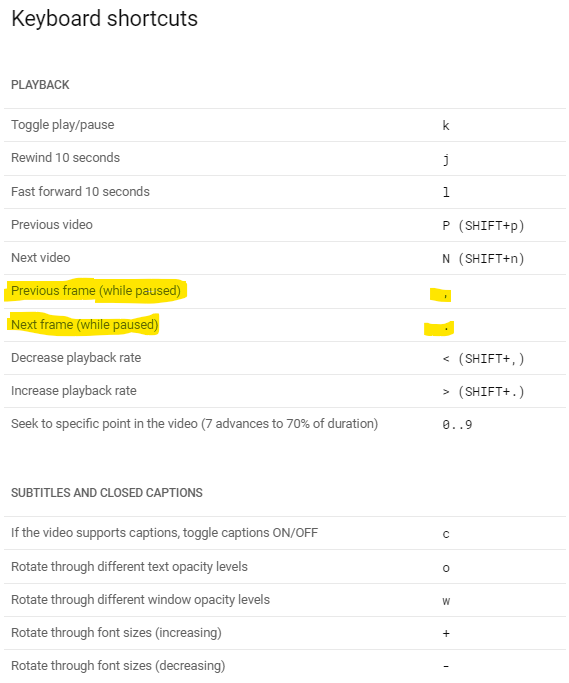
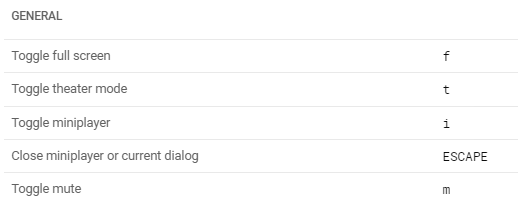
YouTube Keyboard Shortcut Keys to Move by Frame!
After I uploaded this video I forgot to mention another very useful tip for controlling how a video is played. On YouTube, pressing the question mark key ? (on my keyboard, Shift + /) brings up the Keyboard shortcuts display. There are several good hotkeys, but my personal favorite is Previous frame and Next frame using the comma , and period . keys.